
Data
CSV import and export
Importing transactions
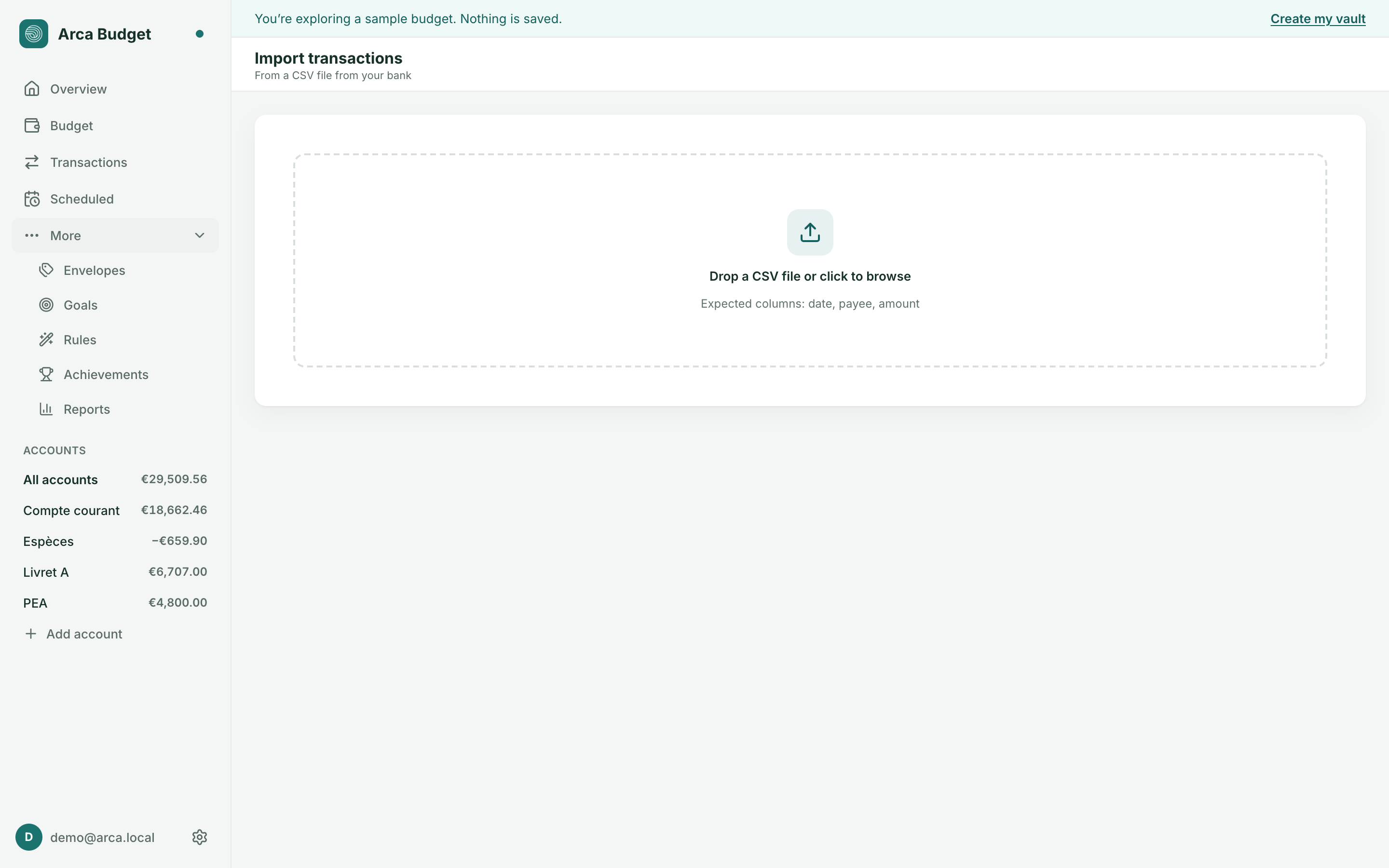
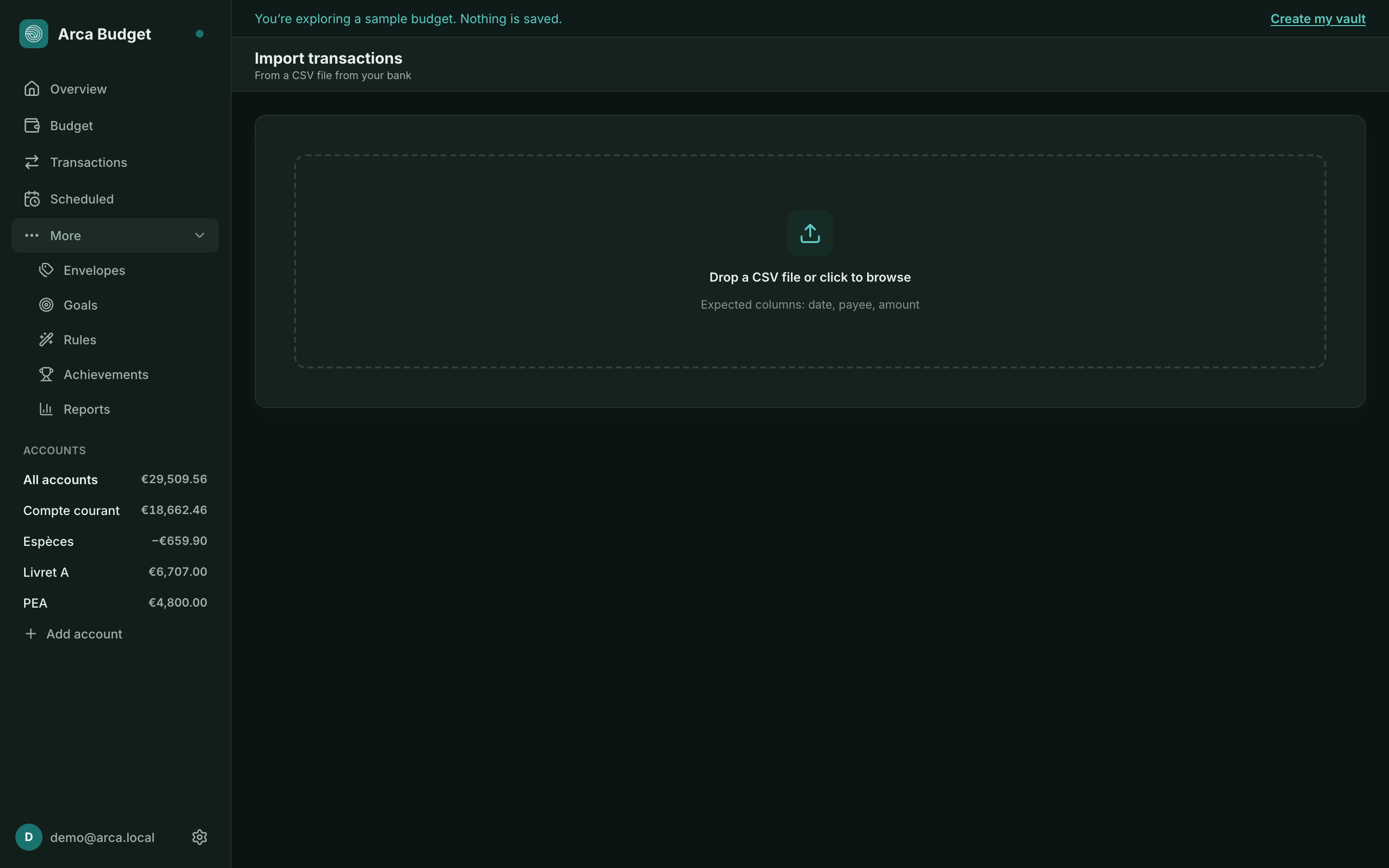
Section titled “Importing transactions”From Import transactions, drop a CSV file exported by your bank or by another budgeting app (or click to browse).
Arca lists every column in your file with a sample of its data, and you pick where it goes: date, payee, note, envelope, account, amount, cleared — or “Ignore”. Common headers are recognised on their own, and a counter says how many columns are mapped and how many go nowhere. Date, payee and amount are the only three required; the rest comes across if it is there.
Two things to know:
- envelopes are matched by name, never created. A name your budget does not have leaves the row without an envelope, and the number of rows affected is stated before the import runs;
- the account can come from the file. Map an Account column and each row goes to the account it names; otherwise everything lands on the account picked from the list.
Invert the sign of amounts if your bank records spending as positive.
The pre-import preview separates New rows from Already linked ones — transactions already imported aren’t duplicated if you re-import the same statement or an overlapping period, including for a file covering several accounts.
Exporting transactions
Section titled “Exporting transactions”The Export button (available on the Transactions page and on an account’s register)
downloads the currently displayed rows (filters and search included) as CSV, with the columns:
Date, Payee, Envelope, Account, Amount, Note.
It’s the simplest format to re-import your data into a spreadsheet, or to back it up outside Arca.
Was this page helpful?
Thanks — noted.