
Accounts & Transactions
Transactions
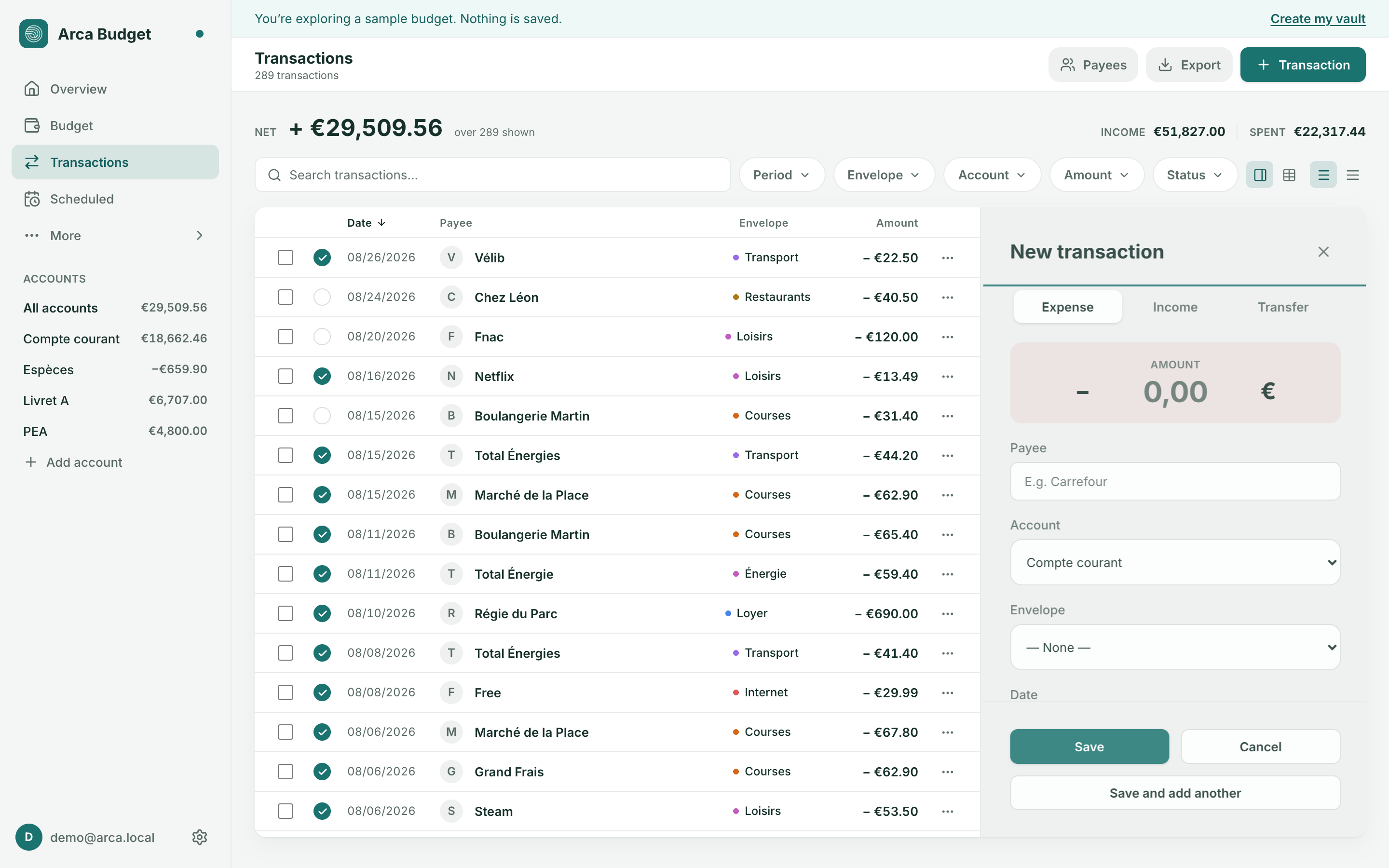
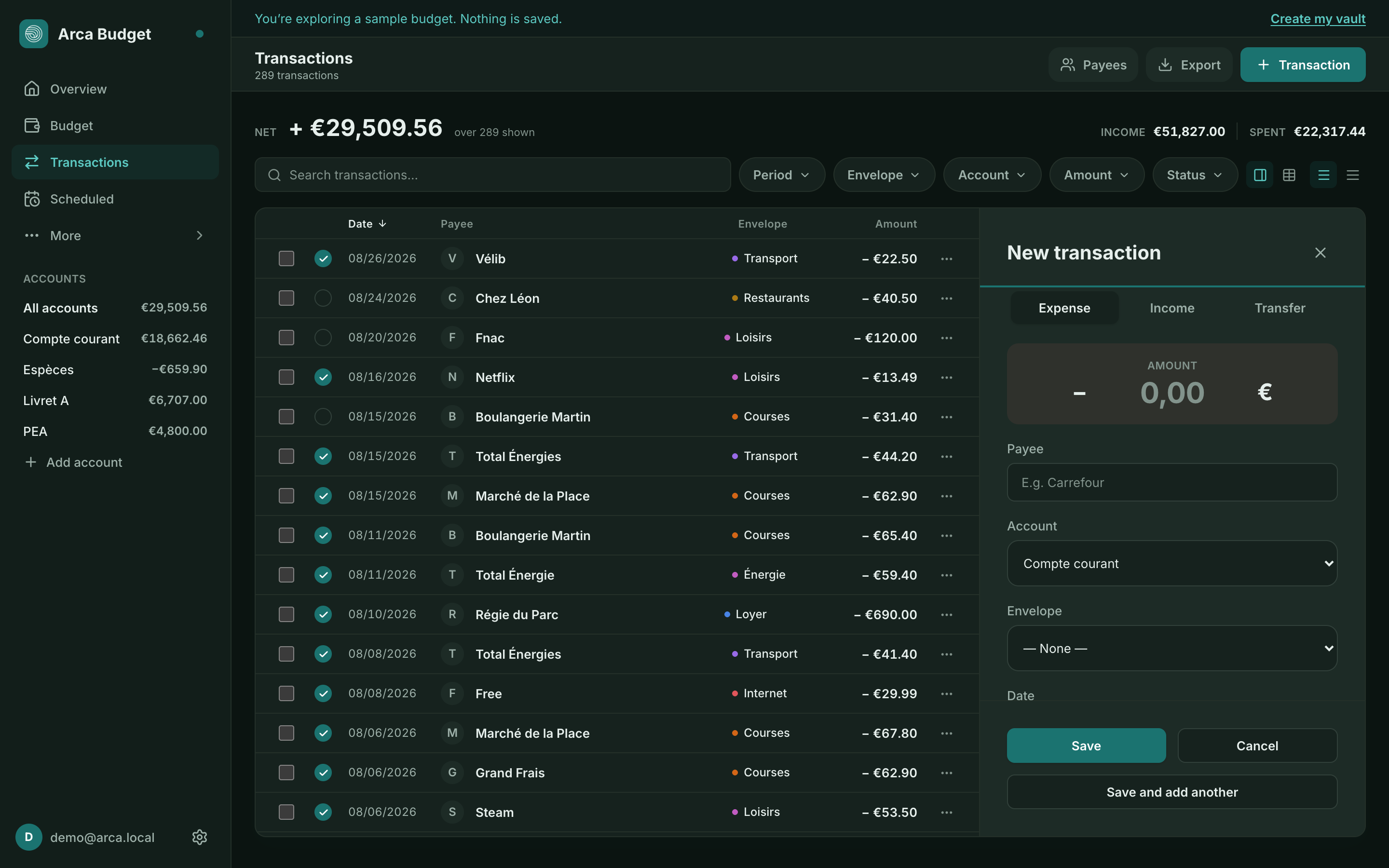
From the Transactions page, search by payee or note, and filter on five independent dimensions: Period, Envelope, Account, Amount and Status. Each button shows its current value, and filters stack — “Restaurants, this month, over £50” is a combination, not a single choice. Clear removes them all. The same bar is on an account’s register, without the Account filter: the list there is already down to one. The summary at the top shows total spent, income, and net for the rows shown.
The register
Section titled “The register”Columns sort on a click of their header, and a second click reverses the order. The Note column shows what you wrote on a row without opening it. The ⋯ menu at the end of a row holds the usual actions — edit, split, delete — and ticking several rows brings up the bulk ones: clear, classify, delete.
On a wide screen the list scrolls inside its own frame: the search, the filters and the month’s net stay in view while you work through the history.
Two entry modes
Section titled “Two entry modes”The register can be driven two ways, chosen in Settings → Transaction entry — the question is also asked on first launch, and the answer can be changed anytime:
- Panel (default): clicking a row opens it in a form beside the table, guided field by field. It is the mode described in the rest of this page.
- Grid: cells edit in place, like a spreadsheet. Leaving the row saves the whole row at once, and Esc abandons it without writing anything. The first, blank row creates a transaction. The grid needs a wide screen; below that, the panel takes over. Keys are detailed in Keyboard.
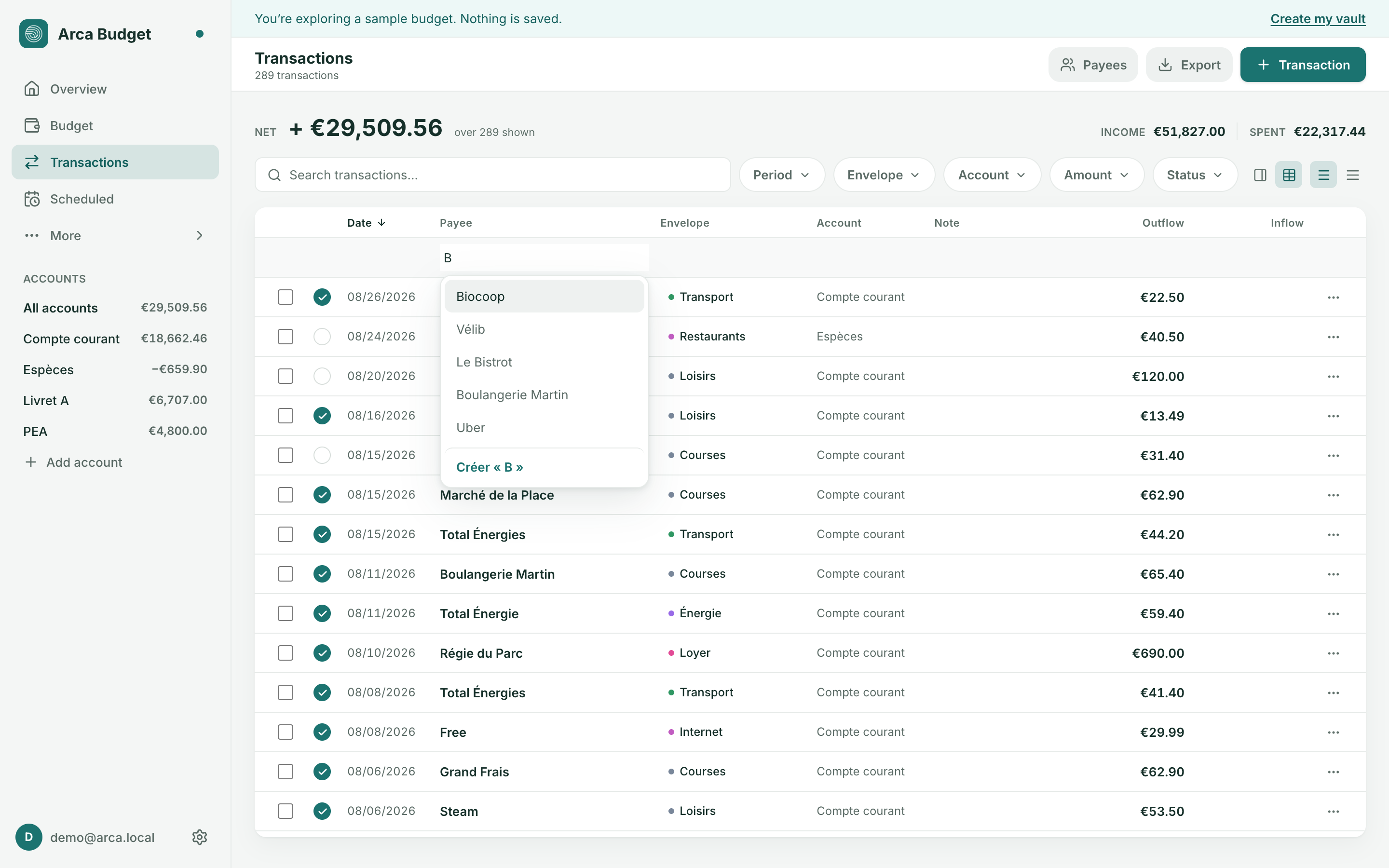
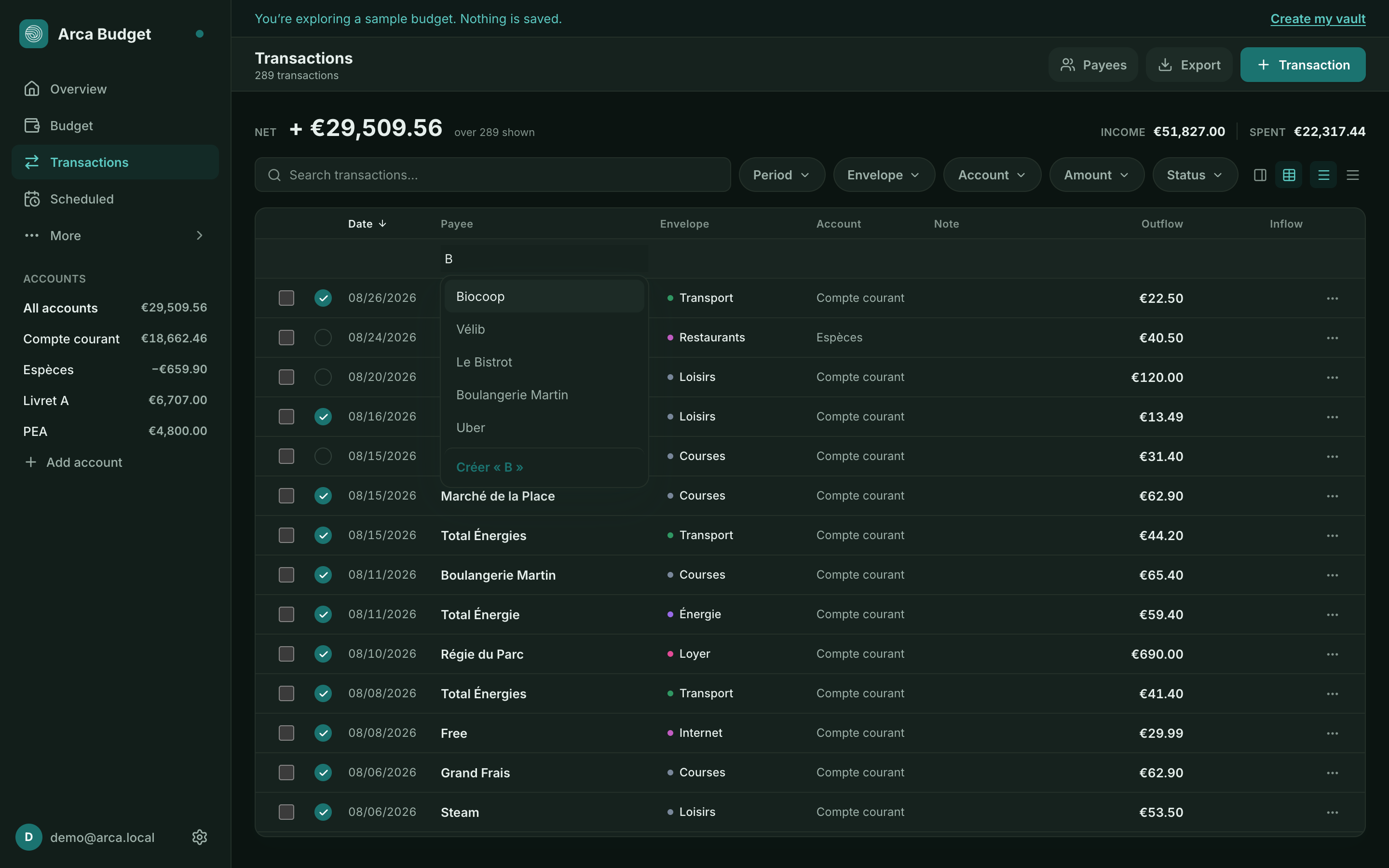
A transfer, a split transaction or a reconciled row always opens in the panel: a flat grid cannot represent their shape.
In both modes, ⌘Z undoes the last action — the entered row truly disappears from your vault, created payee included — and ⌘⇧Z redoes it. The undo history survives a page reload.
Creating or editing a transaction
Section titled “Creating or editing a transaction”A transaction is an Expense, an Income, or a Transfer between two accounts (“From” / “To” fields). Fill in the payee, category, an optional flag, and a note.
Splitting a transaction
Section titled “Splitting a transaction”To spread a single purchase across several categories, use Split transaction: split evenly or add parts one at a time until the amount left to allocate reaches zero. A transfer cannot be split.
Bank reconciliation
Section titled “Bank reconciliation”Reconciling confirms that your register matches your bank statement. From an account, run Reconcile account, enter the statement balance: Arca compares it against the currently cleared balance and either shows a match (the selected transactions will be locked) or a discrepancy, in which case an adjustment transaction is created automatically.
Three states read off the badge at the head of each row:
Clicking a row opens it in a panel beside the table, which covers nothing: you read the row next to its neighbours. The open row is tinted, and clicking it again closes the panel. On a narrower screen the panel goes back to being a drawer.
Keyboard
Section titled “Keyboard”Everywhere: F puts the cursor in the search field, ⌘K (Ctrl K off Mac) opens the command palette, and ? shows the Keyboard shortcuts screen that lists them all. Register keys depend on the mode:
↓ / ↑ (or J / K) move the row cursor, Space selects the row, ⇧ Space extends the selection, and ↵ opens the transaction. Esc closes the panel.
Entering several transactions in a row: T opens the form with the cursor already in the amount. ⌘⇧ Enter saves and carries on — the account and the date stay put, the rest clears, and the cursor returns to the amount: the gesture for entering a grocery receipt line by line. ⌘ Enter saves and closes.
Arrows move the cell cursor; ⌘ arrow jumps to the edge, and ⌘↑ returns to the entry row. F2 or typing enters edit mode — arrows then belong to the field. Tab commits the cell and moves to the next one (⇧ Tab: the previous one), ↵ commits and moves down — leaving the row saves it. ⌘D copies the cell above, and Esc cancels the cell, then the whole row.
Payees
Section titled “Payees”Payee management (the Payees button on the Transactions page) lets you merge duplicates, set a default category per payee, mark a favorite, and let Arca learn a payee’s usual category over time.
Recurring transactions
Section titled “Recurring transactions”For a rent payment, a subscription, or a paycheck that comes in every month, see Recurring transactions instead of re-entering them by hand.
Was this page helpful?
Thanks — noted.