Getting Started
Create your account
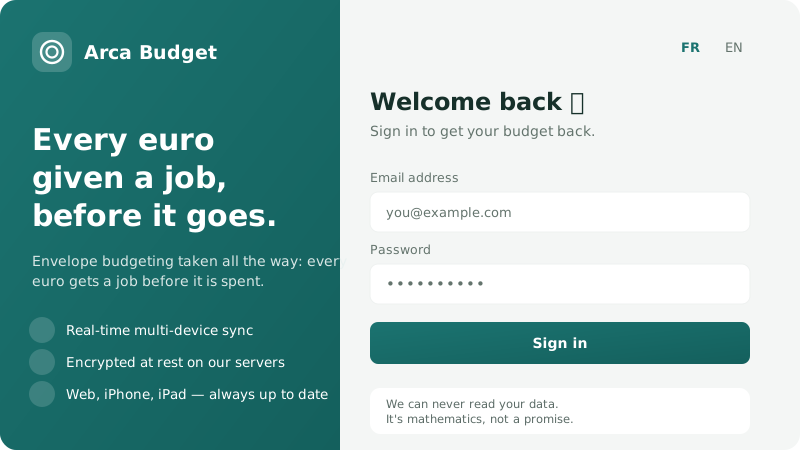
Arca offers two ways to create an account: with an email address and password, or with Google.
With email and password
Section titled “With email and password”Enter your email and a password, typed twice to catch typos.
With Google
Section titled “With Google”Google confirms your identity; it receives nothing from your budget. After signing in with Google, Arca asks you to set a password, so that you can also sign in without going through Google.
The five-step wizard
Section titled “The five-step wizard”Once the account exists, a wizard opens and announces its progress — “Step 1 of 5”, then 2, 3, 4 and 5. Steps 2 to 4 have a “Back” button, and nothing is written to your vault until you confirm step 4: leaving before it leaves nothing behind. That is the moment the vault is set up — which is why the fifth step has no way back, asking only for an icon.
Step 1 — “What brings you here?” Five answers are offered: get out of debt, stop living paycheck to paycheck, save for a project, feel in control, manage money together — plus “I’m not sure yet”. You can pick several, and they are what build your first budget at the next step. For each one, Arca shows the sentence of method behind it, and reuses it in the congratulations screen at the end of the wizard. The same screen sets your country and the budget’s currency, and asks for your first name if you signed up with Google.
Step 2 — “Here’s your budget”. The envelopes your answers imply, already there: a Debt group if you want out of debt, a Cushion envelope if the month ends at zero, a Project group, Shared and Personal envelopes for a budget managed together. Nothing is locked in — adjust the amounts, rename, remove before confirming. “Start from scratch” creates an empty budget.
Step 3 — “Your first account”. A name, a type (checking, savings, cash, card) and a starting balance. This step is optional: “Skip this step” moves on without creating anything.
Step 4 — “How do you prefer to enter transactions?” The panel, a form beside the table, guided field by field; or the grid, whose cells edit in place from the keyboard, like a spreadsheet. Both do the same thing, only the gesture differs, and you can change it anytime in Settings. On a narrow screen the panel takes over whichever you pick.
Step 5 — “One last thing — an icon?” Your vault is ready, and the screen says so by echoing the answer you gave to the very first question. Twenty-four faces are offered; the first tile keeps your initial instead. The choice is optional and can be changed anytime in Settings.
Add a passkey
Section titled “Add a passkey”The wizard does not offer a passkey: you add one from Settings → Security, once inside the app. Stored in your device’s Apple or Google keychain, it then signs you in without a password — see Sign-in methods.
What’s next?
Section titled “What’s next?”Once your account is created, head to First steps to set up your first bank account and your first budget.
Was this page helpful?
Thanks — noted.